A quote goes out on Friday afternoon. The discount is larger than the sales executive was allowed to give, the manager's approval sits in a reply email, and the total in the file does not match the total the customer accepted. Nobody acted dishonestly. The quotation approval spreadsheet never forced anyone to record the decision properly.
Why Excel Quotation Sign-Off Breaks Under Discount Pressure
Say a customer pushes for a sharper price before close of play. The executive edits the discount, the workbook recalculates instantly, and a manager replies "fine" by email without seeing the margin. A week later the customer disputes the total, finance asks who approved it, and three copies of the file give three different answers.
What the workbook does well and what it cannot enforce
Excel calculates net totals, discounts, VAT and margin reliably when the formulas are right. It cannot enforce who was allowed to approve that discount, whether the approval happened before the quote was sent, or which saved copy the customer received. Approval lives outside the file, in email, chat or a coloured cell, while the commercial commitment lives inside it.
That gap carries a real cost. Managers chase sign-off, finance reconciles versions, and the business depends on the one person who understands the formulas. A disputed quote then becomes an argument about memory rather than a record you can open.
A discount commits money. Once it does, the workbook needs controls, not just calculations.
The calculation risk alone justifies those controls. The Tuck School summary of spreadsheet error research reports errors in approximately 0.9% to 1.8% of formula cells, and a separate review reported that 94% of examined spreadsheets contained errors, with an average error rate of 5.2% across formula cells. In one audit of 25 operational spreadsheets, developers confirmed 117 potential errors, and 70 of those could affect outputs.
Those findings point to three practical questions for any UK SME quoting from Excel. Who may approve what, based on discount and margin? What must the file record so the decision can be proved later? And when does the workbook stop being the right tool for a repeatable operational workflow? A single user doesn't remove those questions. It just concentrates the risk in fewer hands.
The Fields and Approval States a Quotation Sheet Needs
Start with the record, not the formatting. A controlled quotation approval spreadsheet needs the fields below, in the order a quote moves through the business.
Minimum fields for a quotation approval sheet
| Field | Why It Matters | Control |
|---|---|---|
| Quote ID and revision number | Identifies the exact version the customer accepted | Locked once approved; any change creates a new revision |
| Customer and account owner | Links the discount to the relationship and its owner | Controlled list from customer records |
| Transaction currency | Keeps the basis of each amount clear | Controlled currency list |
| Line items, quantity and unit price | Source of every value on the quote | Unit price taken from the dated price list |
| Price list version and effective date | Shows which commercial rules produced the number | Reference table with an owner and a date |
| Discount percentage and value | Determines the approval band | Validated range and limit flag |
| Margin after discount | Shows whether the deal still meets target | Calculated, never typed |
| Payment terms | Non-standard terms need escalation | Controlled list |
| Net, VAT rate, VAT and gross total | Aligns with invoicing requirements | Calculated from net at the recorded rate |
| Requester, approver, decision, timestamp and comments | Proves who decided, when and why | Captured on each status change |
| Status | Decides who can act next | Controlled list of six states |
Two fields carry more weight than the rest. The price list version shows which commercial rules produced the number, so an approver isn't judging a discount against prices that changed last month. The revision number identifies what the customer accepted, not just what someone last saved.
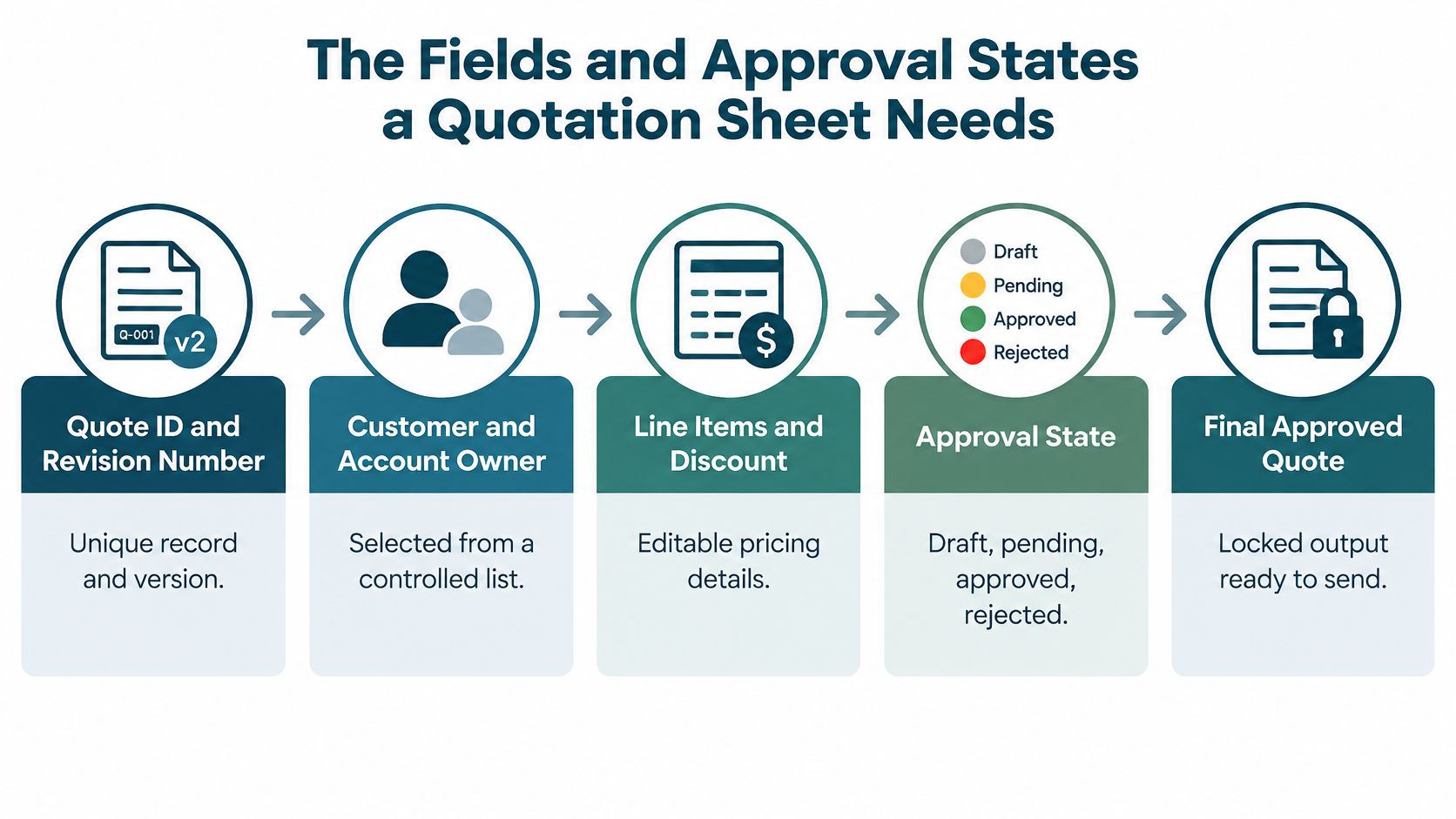
The six states every quote moves through
- Draft: The requester builds the quote and can edit freely.
- Submitted: The quote locks for the requester and routes to the approver for its discount band.
- Awaiting approval: The approver can approve or reject, but cannot edit the lines.
- Approved: Values lock, and the decision, timestamp and comments are recorded.
- Rejected: The quote returns to Draft with a stated reason the requester can act on.
- Sent: The approved revision, and only that revision, is issued to the customer.
Any material edit to an Approved or Sent quote creates revision n+1, which returns to Submitted for reassessment. That single rule prevents the most damaging failure, where an approved quote changes after sign-off and nobody notices.
Practical rule: A field that can't change a decision can be dropped. A field that changes a decision must be locked or controlled.
Test your current sheet against the last accepted quote. Can every figure be traced to a named person, a date and a decision? If the answer needs an email search, the fields are not yet doing their job.
Setting Discount Authority and Escalation Thresholds
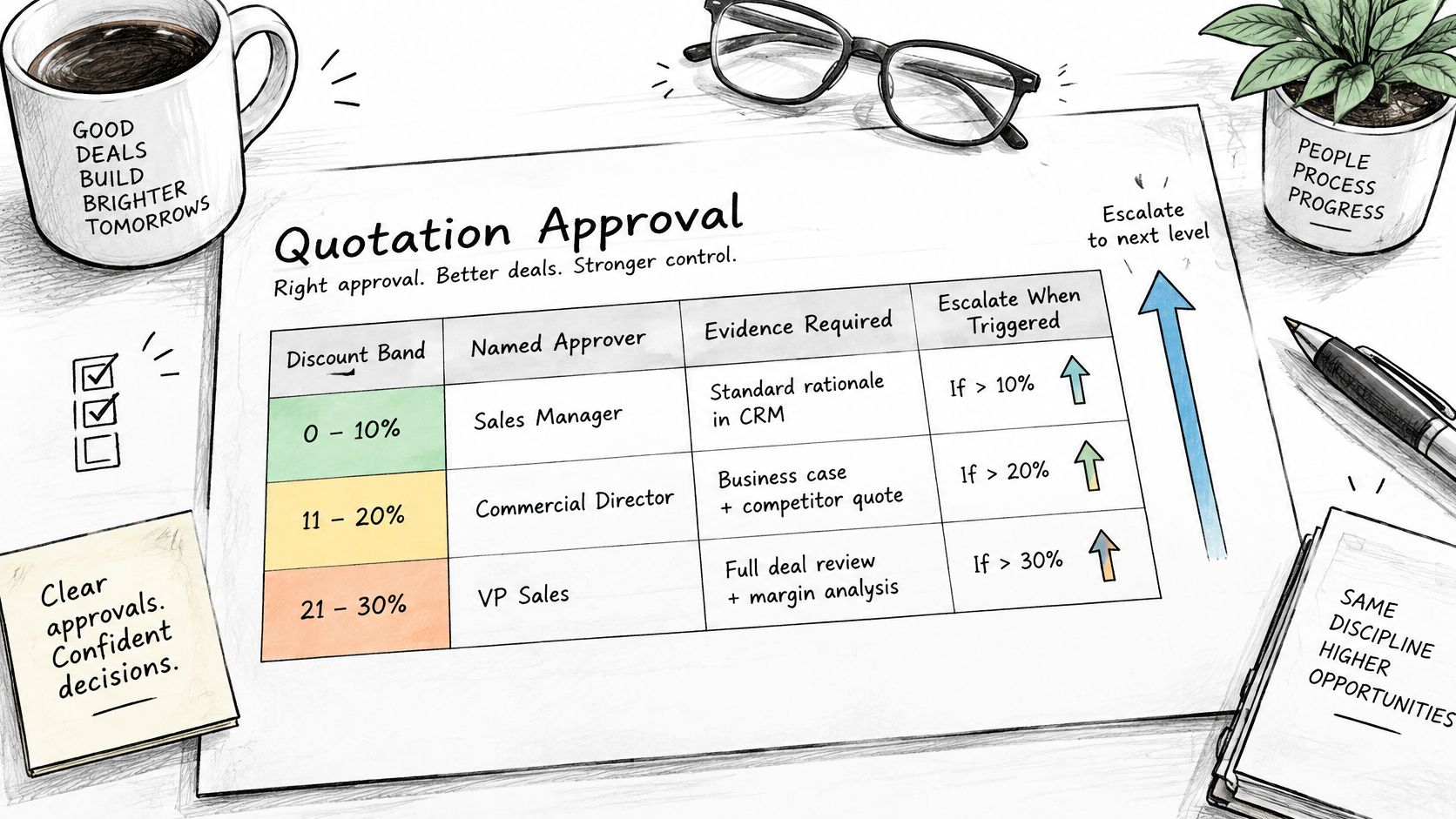
Use one principle throughout. Each discount band has one named approver, one evidence requirement and one escalation trigger. If a band has two possible approvers, it has none, because each can assume the other checked it.
The bands below are illustrative. Replace them with your own delegated limits before you touch the workbook.
Example discount bands and escalation triggers
| Discount band (example) | Who May Approve | Evidence Before Release | Escalation Trigger |
|---|---|---|---|
| Up to 5% | Sales lead | Standard price list version on the quote | None beyond the band |
| Above 5% to 10% | Commercial manager | Written reason recorded on the quote | Margin below target |
| Above 10% | Managing director | Margin, payment terms and override notes shown | Any manual price override |
The chart below shows how those bands, approvers and evidence requirements sit together on one page.
Escalation is not only about the percentage
A modest discount can still be a poor deal. Escalate when margin falls below target, payment terms are non-standard, a price has been manually overridden, currency exposure is unusual, or the quote value passes a set limit. These triggers belong on the quote itself, next to the numbers, so the approver sees them without opening a second file.
A workbook can support this with a validated discount column, a flag when the discount exceeds the requester's band, and an approval field that names the role required for that band. Our guide to building an approval workflow in Excel covers the routing logic behind that kind of set-up. Be candid about the limit, though. A workbook can flag a breach, but it can't fully stop someone overwriting a formula, so the band must be checked again at release.
The short video below walks through how approval thresholds work in practice.
I would write the band table first, on paper, with one owner per band. Only then should anyone build flags or dropdowns around it.
Automatic Checks for Totals, VAT and Price Versions
Treat checks as rules you can hand to whoever maintains the file. Each one below prevents a specific failure from reaching an approver.
Quotation checks and the failures they prevent
| Check | Rule Enforced | Failure It Prevents |
|---|---|---|
| Totals reconcile | Gross equals net plus VAT at the recorded rate | Mistyped or stale totals |
| Discount limit | Flags any discount above the requester's band | Approval by the wrong person |
| Margin floor | Margin below target forces escalation | Weak quotes passing unnoticed |
| Price version match | Line prices come from the stated price list version | Quotes built on stale prices |
| Range coverage | Totals include every row added after the first build | Omission errors in new lines |
| Currency basis | Transaction currency kept and VAT shown in sterling | Silent conversion or mixed totals |
| Override evidence | Manual price changes need a reason and an approver | Undocumented exceptions |
How the VAT logic should work
Calculate the net amount first, apply VAT at the rate recorded on the quote, and let the gross total follow. HMRC's guidance on charging VAT states that the UK standard VAT rate is currently 20% and that you multiply a VAT-exclusive amount by 1.2 to reach the VAT-inclusive figure. The rate should still come from the transaction's tax set-up, because reduced rates and zero-rated supplies exist and a hard-coded rate will eventually be wrong.
Keep the columns separate rather than tidy. The HMRC VAT guide, Notice 700 requires a VAT invoice to show the amount payable excluding VAT for each described item, the applicable VAT rate, the gross total excluding VAT, the unit price, and the total VAT chargeable in sterling. So on a multi-currency quote, keep the transaction currency and the sterling VAT figure side by side instead of converting one into the other.
Label the basis too. HMRC's explanation of where you see VAT notes that price lists for the general public normally show VAT-inclusive prices, while business-only lists commonly show prices excluding VAT. Never compare one supplier's VAT-inclusive total against another's VAT-exclusive total.
Worked rules your maintainer can build
- Discount flag: Compare the discount cell with the upper limit for the requester's role and highlight the row when it's exceeded.
- Totals check: Confirm gross equals net plus VAT at the recorded rate, and block submission when it doesn't.
- Range check: Use a table structure so totals and flags extend automatically to rows added after the first build.
- Validation lists: Restrict currency, tax treatment, customer, product and status values, so a typed variant can't slip past the logic.
Lock formula cells and leave only inputs editable. A cell that calculates and a cell that's locked are different things, and you need both. Even then, checks catch arithmetic and rule breaches, not judgement. A discount can pass every check and still be the wrong commercial decision, which is why a named approver still has to read it.
Permissions, Sharing and Automation for the Workbook
Keep one master file in one controlled location, with a named owner. Emailed copies each hold a different total within a day, and nobody can say which one the customer saw.
Give each role only what it needs
- Requesters: Enter and submit quotes, but can't edit approval columns or reference tables.
- Approvers: Record a decision only for the discount band assigned to them.
- Price list owner: The only person who changes price lists and discount bands, with an effective date on every change.
- Finance and sales operations: Read-only views, so they can check status without touching values.
Our article on Excel permissions for multiple users sets out how those levels work in a shared file. Protect formula cells and allow editing only in input cells, but understand what that buys you. Sheet protection prevents accidental overwriting, not deliberate tampering, so the release check stays necessary.
Don't send the full workbook to customers. It exposes margins, formulas and other customers' pricing, and it invites the customer to edit the very document you're relying on.
Share a view of the quote, not the machinery behind it.
Keep automation short and dependable
Two triggers earn their keep. A status change notifies the next approver, so a submitted quote doesn't sit unseen. An approved revision exports to a fixed document template, so the sent quote matches the approved numbers exactly.
Avoid repeated manual exports. Each one becomes another version the business may have to explain in a dispute. Keep the trigger list short, and test every trigger against the cutover checklist in the final section before anyone relies on it.
Revisions, Timestamps and Proof of What Was Approved
An approval is not a permanent record just because someone typed "approved." A quote approved on Monday can differ from the one sent on Friday, and in a spreadsheet nothing prevents that from happening.
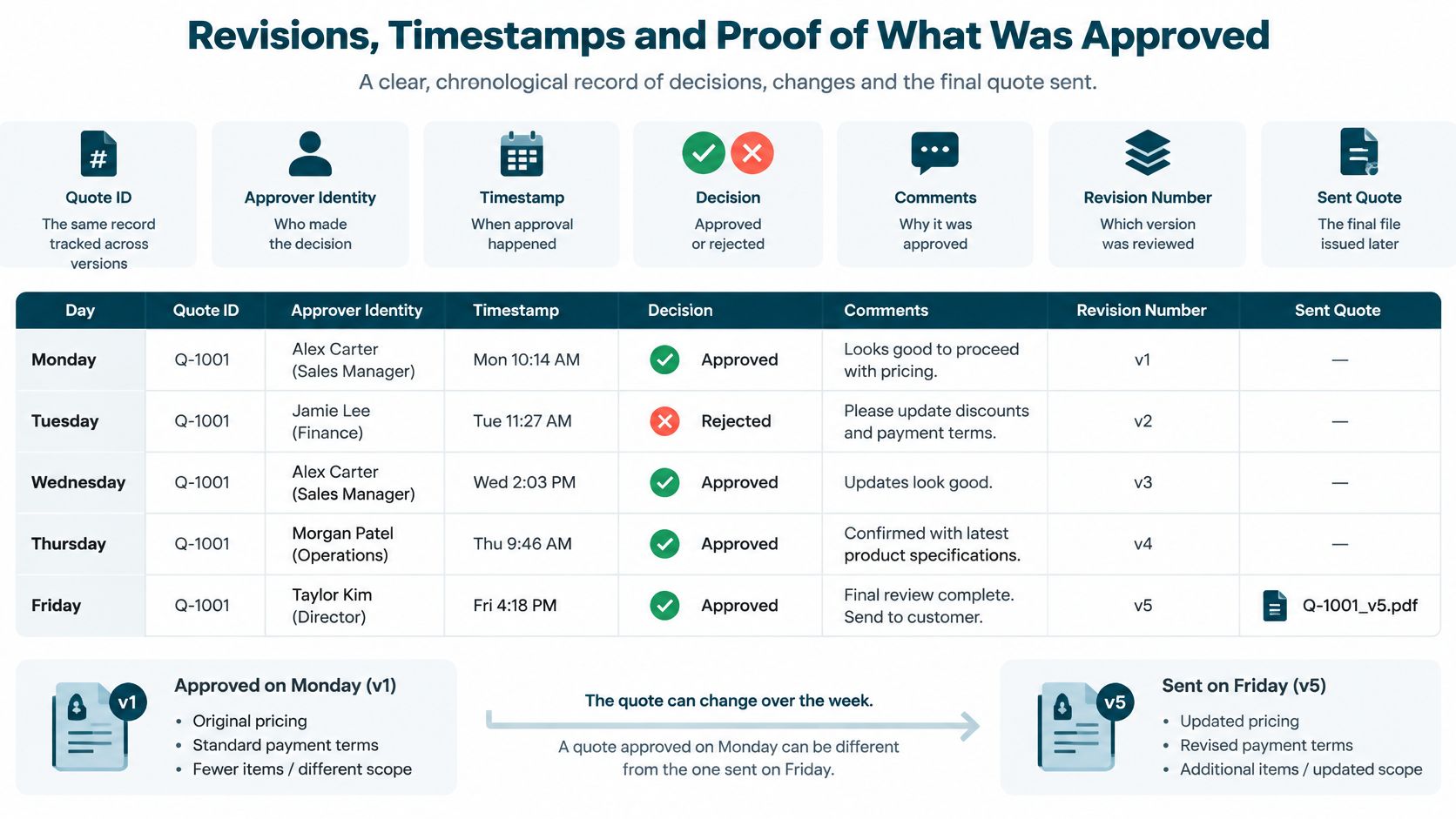
What the record must contain
A reviewer needs approver identity, timestamp, decision, comments, quote ID and revision number, plus the price list version and a snapshot of line items and terms at the moment of approval. Without the snapshot, you're proving that a decision happened, not what it was about.
The evidence for treating this seriously is strong. Panko's summary of spreadsheet audits reports that in audits of 55 operational spreadsheets using strong methodologies, 91% contained at least one important error, and a broader set of 163 spreadsheets found errors in 84% of cases. The same summary reports that domain-related logic errors represented approximately four out of five identified errors, which is why incorrect discount thresholds and stale margin assumptions matter more than typos.
Decide in advance what counts as material
Write down which changes force a new revision. Price, discount, quantity, currency, margin and payment terms are material, so each creates a new revision that must be reassessed. A corrected delivery address usually isn't. If the team decides case by case, they'll decide in favour of speed every time.
Plan for the awkward cases a template rarely handles. The approver is on holiday, a request is withdrawn, a price is missing from the list, or the same quote gets submitted twice. Each needs a status and an owner, not a workaround in someone's inbox.
A workbook can carry history if you're disciplined about it. Append a log entry on every status change, have the person acting enter their own name rather than assuming it, and copy approved revisions instead of editing them. Our guide to Excel version control explains the mechanics. Be honest about the weakness, though. A log anyone can edit is only evidence if the process around it is disciplined.
Ask one question. If a customer disputes a price in six months, can you show what was approved, by whom and when? If not, your timestamps and audit history are decoration.
When a Workbook Is Enough and When a Managed App Is Stronger
Judge this on operational control, not headcount. Analytical spreadsheet work, where one person explores numbers and throws drafts away, suits Excel well. A quotation approval spreadsheet is different. It's a repeatable operational workflow that commits prices to customers, and it needs the controls that come with that.
A workbook can remain valid when discounts are small, quotes are rare, and requester and approver are clearly separated in the record. That's a fair position, and plenty of SMEs sit there comfortably. The file isn't the problem. The missing evidence is.
Excel workbook versus managed web application for quote approval
| Requirement | Excel Workbook | Managed Web Application |
|---|---|---|
| Discount authority | Enforced only by warnings that can be overwritten | Enforced by role and rule before submission |
| Timestamps and decision history | Manual, dependent on discipline | Captured automatically on every action |
| Escalation when an approver is away | Chasing by email | Routed to a named alternate |
| Concurrent editing | Overwrites and copies on desktops | One live record with permissions |
| Document generation | Macro or copy and paste, often fragile | Generated from the approved revision |
| Role-based visibility | Whole file or separate copies | Screens shaped to each role |
| Ongoing maintenance | Depends on the person who knows the formulas | Hosted, supported and changed by the same team |
The triggers that change the answer
- Several approvers for different bands: Routing by memory stops working.
- Timestamped, searchable approvals: You need evidence you can retrieve, not reconstruct.
- Unavailable approvers: Escalation to a named alternate has to happen without chasing.
- Concurrent editing: Several people working the same quote creates overwrites and stray copies.
- Documents from approved revisions: The sent quote must match the approved one automatically.
- Disputes: A customer challenge needs a record, not a recollection.
When those are routine, a managed custom web application is stronger because roles, rules and history are enforced by the system rather than remembered by the team. You're also no longer dependent on whoever maintains the formulas being available, careful and still employed.
Be fair about the alternatives. A standard product can be the better fit when your workflow matches its model, and a proper assessment may recommend keeping Excel or using software you already have. A good replacement doesn't copy the workbook cell by cell either. It redesigns the route from request to approval so each step is obvious.
When the workbook can't show who approved what and when, it's no longer just a calculation tool.
Missing timestamps, audit history and escalation are the clearest signal you've crossed that line. Those aren't cosmetic gaps. They're the difference between a decision you can prove and one you can only describe.
Test, Cut Over Safely and Start a Free Fit Check
Don't launch a new approval process on a live deal. Build a set of test quotes first, and run them with the people who'll use the process, not only the person who set it up.
Test cases that expose weak controls
- Normal approval: A standard quote inside the lowest band.
- Each band boundary: Quotes sitting just below and just above every threshold.
- Rejected quote: Confirm it returns with a reason the requester can act on.
- Revision after approval: Change a price on an approved quote and confirm it forces reapproval.
- Unavailable approver: Check the quote routes to the named alternate.
- Multi-currency quote: Confirm the transaction currency and sterling VAT both survive.
- Margin breach: Confirm escalation fires even when the discount looks modest.
If any test needs someone to explain what should have happened, the process isn't ready. Fix the rule, not the training notes.
Cut over without losing open quotes
Agree the cut-over point in advance. Decide which open quotes move across and which finish in the old file, then keep the original workbook as a backup if needed. Before a build is agreed, the Spreadsheet Assessment works through migration details such as supplier and coding references, which old data to move, approval exceptions and the cut-over point. Building the agreed app, letting your team review it and moving information to plan comes after that, with the original spreadsheet retained as backup.
A Free Fit Check is offered before a Spreadsheet Assessment, and it's the right first step to test whether quotation approval needs its own application or whether a simpler route is enough. The Spreadsheet Assessment is then the lower-commitment step if the answer is yes. The site also has an interactive demo that turns an Excel approval tracker into a managed request-and-decision workflow, presented as a hypothetical example, which gives you a feel for the shape of the thing before you commit to anything.
Bring four things. The workbook itself, the people who touch it, your approval bands, and one recent quote that was disputed or delayed. That disputed quote will tell us more about your control gaps than any feature list.
You can read the approval guide for the wider picture, check current details on /pricing, and Start a Free Fit Check when you're ready. I would start there rather than rebuilding the workbook again, because another rebuild gives you the same file with neater formatting.
Spreadsheet Upgrade turns business-critical Excel workbooks into fully managed custom web applications, so your quotation discounts, approval bands, timestamps and revision history are enforced by the system instead of remembered by the team. If your quotes need approval evidence you can produce in a dispute, visit Spreadsheet Upgrade and start with a Free Fit Check.