Are Excel and Access really interchangeable choices for an operational data store, or is that question too narrow? In practice, teams often need to decide which work should stay in a spreadsheet, which needs structured shared data, and whether either desktop tool can support the process as it grows.
The right answer depends on more than file size. Consider how many people update records, whether those records relate to one another, how permissions and approvals work, what reports people need, and who will maintain the system. Access can bring useful structure to shared operational data, while Excel remains valuable for analysis. A managed web application can be a better fit when desktop deployment, remote access, or ongoing ownership become obstacles.
Why Access vs Excel for Operational Data Is Not a Simple Choice
A common assumption is that Excel and Access are two versions of the same tool, with one offering more features. They solve different problems. Excel centres work on worksheets, cells, formulas, and files. Access is designed around a relational database, where tables, relationships, queries, and forms help organise shared records.
That difference matters when an operational workbook starts serving as a system of record. A job tracker, order log, asset register, or approval process may begin as a quick spreadsheet, then accumulate handoffs, repeated edits, permissions questions, and business rules embedded in formulas. The question isn't just which product can hold the information. It's which foundation makes the process dependable and maintainable.
| Approach | A good fit when | Common constraints |
|---|---|---|
| Excel | People need flexible analysis, modelling, and ad hoc reporting | Shared editing, version control, and consistent data entry can become difficult to manage |
| Microsoft Access | A team needs structured, searchable records, forms, and queries | File-based deployment and database capacity need active consideration |
| Managed web application | A repeatable workflow needs browser access, role-based controls, and ongoing ownership | It requires a defined scope and a managed build rather than an off-the-shelf spreadsheet |
These aren't necessarily permanent, mutually exclusive choices. A team may keep Excel for exploratory analysis while moving shared records and controlled inputs into a database or application. Access can be a sensible departmental option, but desktop deployment, remote access, concurrent use, and the responsibility for maintaining the application can still shape how well it works.
This comparison uses those practical criteria: data volume, concurrency, relationships, permissions, reporting, and ownership. It isn't a feature contest. It's a way to identify which parts of a workflow need a different foundation.
What Excel Actually Does Well for Operational Data
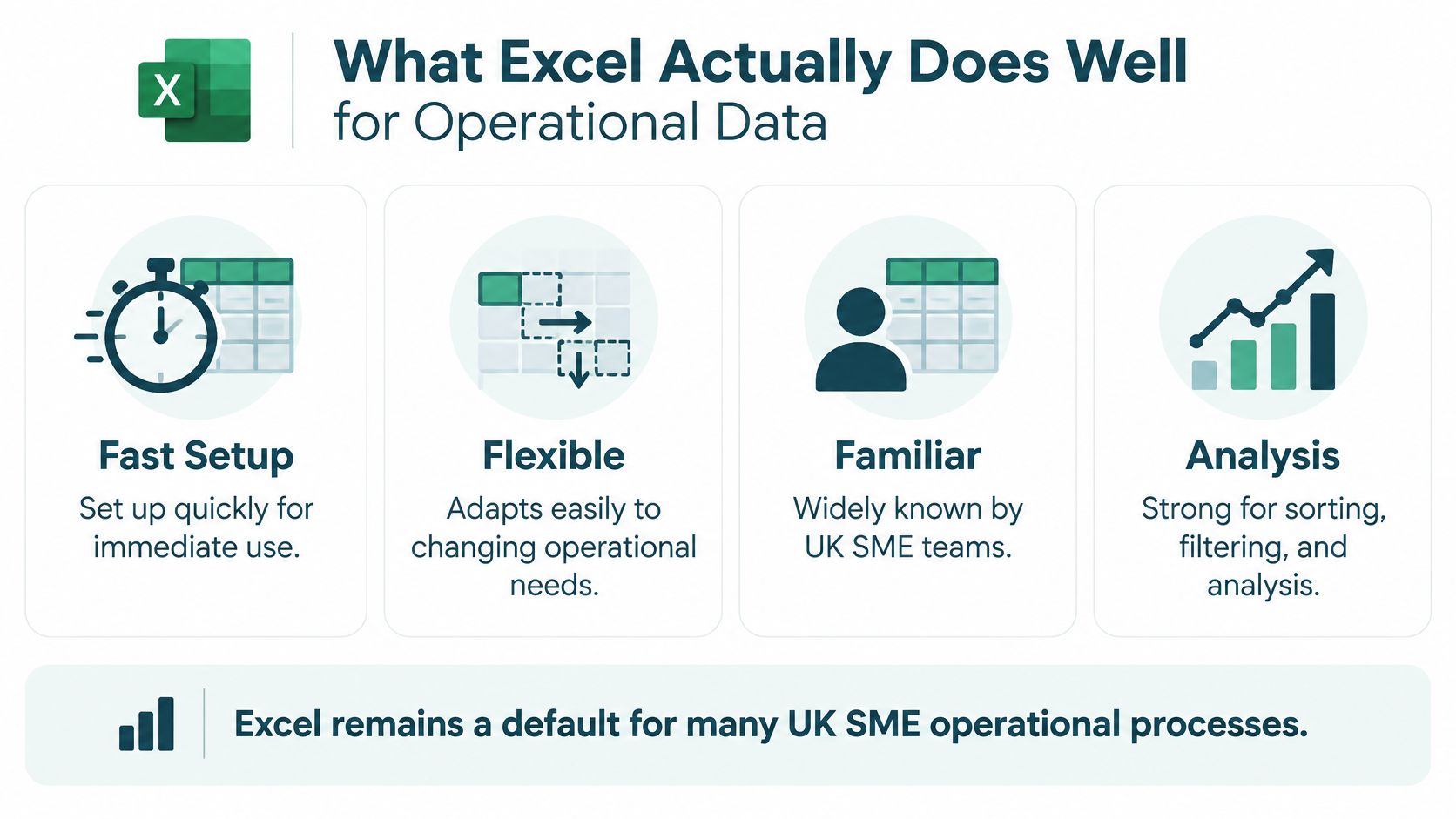
Excel remains a default for many UK SME processes for good reasons. Teams know how to use it, can set up a workbook quickly, and can change its layout as requirements shift. It's especially useful for sorting, filtering, analysis, forecasting, scenario modelling, and charts. When someone needs to explore a dataset or test an assumption, the flexibility of a worksheet is a genuine strength.
Excel also has a large single-grid capacity. Microsoft lists a maximum of 1,048,576 rows by 16,384 columns per worksheet, and a 256-user limit for simultaneously opened shared workbooks in its specifications (Microsoft's Excel specifications and limits). These are published limits, not promises that a complex workbook will remain responsive or safe to edit at that scale.
The concern isn't that every spreadsheet is unreliable. It's that a workbook used as a long-running operational system can combine data entry, calculations, reporting, and process logic in a file that many people edit. Formula ranges can be changed, cells overwritten, and handoffs can leave users working from different versions. A study auditing 50 diverse operational spreadsheets found 483 error instances, affecting 1.79% of formula cells. The same source reports earlier research in which 94% of examined spreadsheets contained errors, with an average formula-cell error rate of 5.2% (spreadsheet error research).
Those findings don't make Excel unsuitable for business. They make governance important when a workbook controls repeatable work. Excel excels at analysis and ad hoc reporting. It becomes more fragile when many users rely on the same editable file to enter records, follow a process, and produce consistent outputs. A practical review asks whether users are still analysing information, or whether they're maintaining an operational workflow inside a spreadsheet.
Where Microsoft Access Improves Structured Data Handling
Access is designed as a relational database, rather than primarily as a calculation grid. That makes it better suited than Excel when multiple users need to update shared operational records while using consistent fields and repeatable queries. Instead of keeping customer, order, and status information in repeated worksheet rows, a database can store related entities in tables and connect them through relationships.
For a systems manager, the distinction is concrete. Excel makes it easy to copy data across sheets or adjust a formula for a one-off analysis. Access supports a more defined structure: tables hold records, relationships connect them, queries retrieve relevant subsets, and forms can guide data entry. Those elements can help a departmental workflow maintain consistent records and generate repeatable reports. For a deeper explanation of how related records fit together, see this guide to relational tables and databases.
Access has firm capacity boundaries. Microsoft documents a 2 GB maximum database file size, up to 255 concurrent users, a 1 GB maximum recordset size, and a 255-field recordset limit (Microsoft's Access specifications). The database-size figure excludes required system-object space. These limits make Access useful for many departmental workflows, but not an unlimited enterprise data platform.
Practical rule: Treat Access as a structured operational option with defined ceilings, not as a database that will scale indefinitely.
Microsoft recommends migration to SQL Server when greater scale or capacity is required. That doesn't mean every team should avoid Access. It means a migration decision should check whether the data model, recordset width, file size, and expected shared use suit its boundaries. Access can improve structure over Excel, but database design alone doesn't resolve deployment, remote access, or long-term ownership.
Comparing Excel and Access on the Criteria That Matter
Published limits tell only part of the story. The more useful comparison is how each product handles the work the team does.
| Criterion | Excel | Microsoft Access |
|---|---|---|
| Data layout | Large worksheet grid for direct analysis and modelling | Structured tables and relationships for related records |
| Capacity | Up to 1,048,576 rows by 16,384 columns per worksheet | 2 GB database limit and 1 GB recordset limit |
| Concurrent use | Shared workbooks list a 256-user limit, but that doesn't guarantee safe editing for complex files | Up to 255 concurrent users, subject to disciplined deployment |
| Data relationships | Often represented through copied ranges, lookups, or separate sheets | Represented through related tables and queries |
| Entry and permissions | Flexible cells; consistency and access control need careful management | Forms and database structure can guide input, but deployment still matters |
| Reporting | Strong for analysis, charts, and ad hoc summaries | Queries and reports can support repeatable operational outputs |
| Maintenance | Familiar, but formula and file dependencies can be hard to govern | More structure, alongside responsibility for the database and its deployment |
Excel offers a larger single-grid surface. That doesn't make it a better store for related operational records. Access's smaller published storage limits don't make it a poor fit by default. They signal that data should be modelled thoughtfully, rather than importing every wide worksheet unchanged.
Concurrency also needs a practical reading. Excel's shared-workbook limit doesn't establish that formula-heavy, macro-enabled, or highly linked files will tolerate simultaneous edits. Access's user limit doesn't remove the need for sound deployment. Microsoft's figures describe ceilings, not performance guarantees (Microsoft's Access specifications). A team should test the transactions that matter, such as simultaneous updates, filtered searches, imports, and report generation.
“A bigger worksheet isn't the same thing as a better shared record system.”
On relationships, Access is generally the more natural fit for separating entities and querying only the relevant records. Excel remains easier for flexible analysis. Permissions, reporting, and maintenance depend on how each tool is configured and used. Neither product automatically provides a well-owned process because it can store the data.
How to Decide Between Excel, Access, and a Managed Web App
Start with the workflow, not a preferred product. Map who enters information, who changes it, what gets approved, which outputs people rely on, and what happens when a record is wrong. Then make the choice in stages.
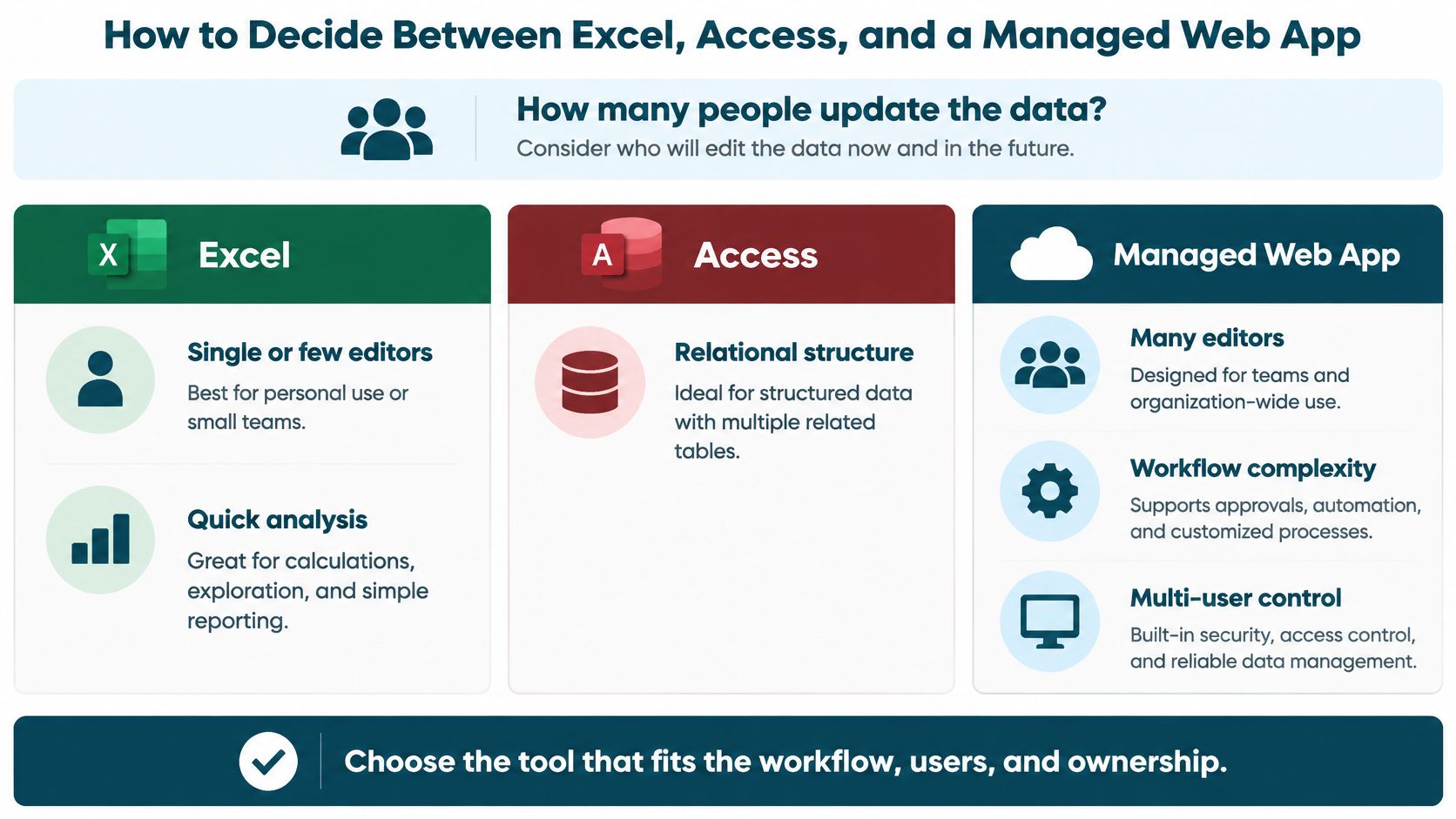
- Identify the work type. If people are testing scenarios, exploring data, or building ad hoc charts, Excel is often well suited. If they repeatedly enter and retrieve related records, structured data management deserves consideration.
- Measure the current workbook. Check row count, column width, file size, and the number of people who need simultaneous access. Compare the workload with the published product limits, but don't assume operation near a limit will be responsive.
- Check data relationships and controls. If a record needs to connect reliably to customers, orders, assets, approvals, or statuses, model those relationships rather than just copying worksheets into a database. Consider who should view or change each record.
- Decide who owns the system. Access may be a fair fit when a departmental database and desktop deployment match the team's needs and someone can take responsibility for its continued operation. If the process needs browser-based collaboration, remote or mobile access, or a clear maintenance arrangement, assess a managed web application too.
A standard product is a sensible choice when the business process is genuinely generic and the product already handles it well. Don't commission a bespoke system just to reproduce an ordinary process. Equally, don't force a distinctive approval path or data model into a generic tool if staff end up maintaining workarounds.
Access's file-based model can support simultaneous users through record-level locking, but it isn't the same as cloud-native, browser-based collaboration. For a fuller comparison of those deployment choices, see Excel versus a hosted web app. The deciding point is not whether Access is old or Excel is familiar. It's whether the chosen system fits the workflow, the users, and the team that will own it.
Migration, Coexistence, and Ownership Risks
A tool change doesn't have to mean abandoning the spreadsheet overnight. A staged transition can leave Excel in place for exploratory analysis while moving shared records, controlled data entry, approvals, repeatable reporting, and permissions into a system designed to manage them. Microsoft's own guidance distinguishes Access for organised, searchable, multi-user data from Excel for analysis, complex calculations, scenario modelling, and charts (Microsoft's guidance on managing data with Access or Excel).
A sensible migration begins with discovery. Identify the workbook's inputs, formulas, handoffs, exceptions, outputs, and users. Clean the data before transfer, decide who needs access to which records, and agree how the new process will be checked. Plan a cutover that allows users to confirm the new system handles real work, and define how they'll return to the previous process if a critical issue appears.
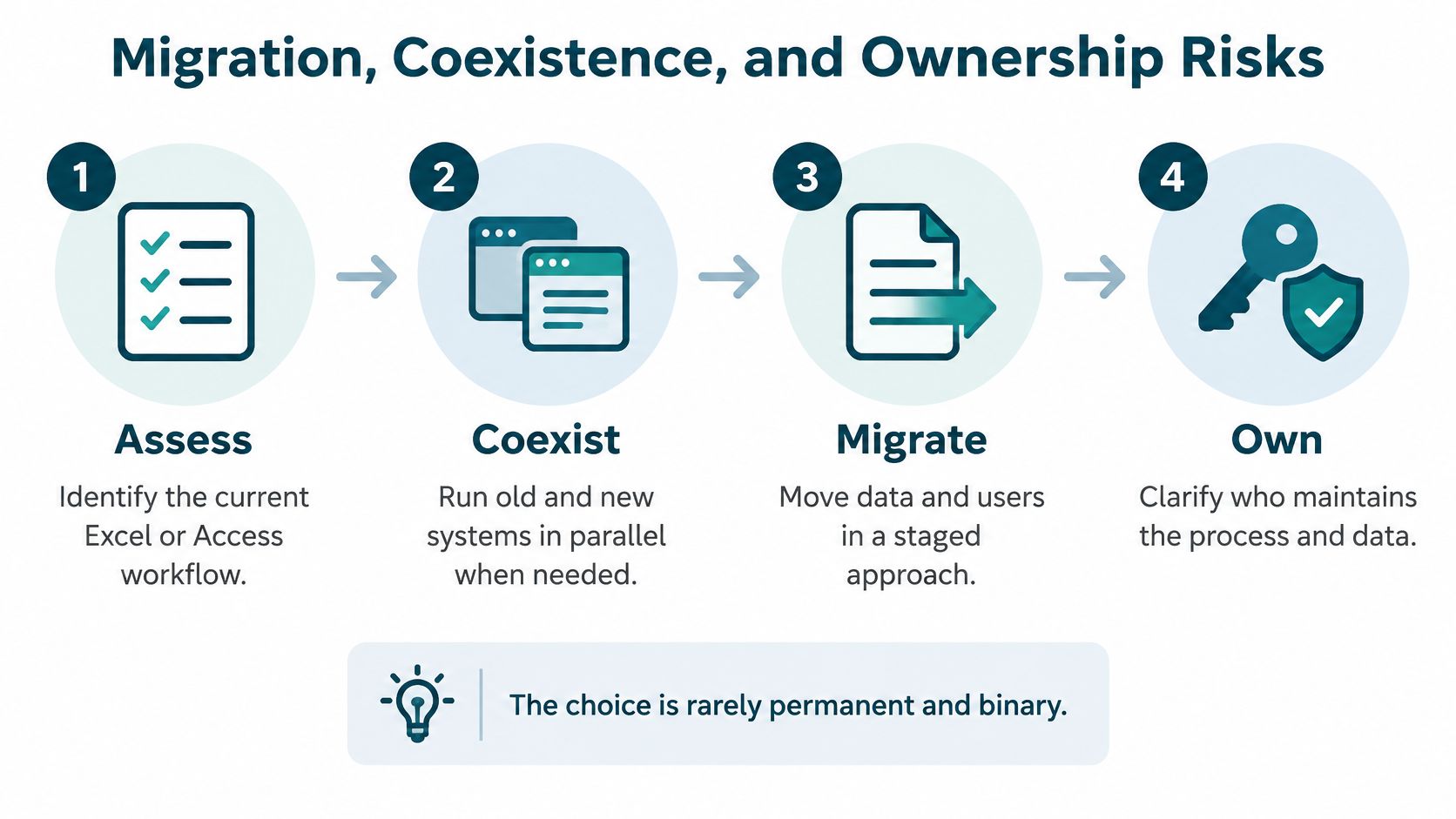
The risks differ by path. Excel can become fragile through repeated edits and handoffs. Access provides more structure, but its file-based deployment needs attention to shared data, network conditions, backups, locking, and the risk of corruption. Any desktop database also needs an owner who understands how it's used and can respond when requirements change.
Keep ownership explicit: Decide who is accountable for data quality, user access, backups, changes, and support before cutover.
A structured data migration plan should include coexistence arrangements and clear responsibility, not just a transfer of rows. A Free Fit Check is intended to map the workbook, workflow, users, permissions, data, and edge cases before choosing a path. Its purpose is to assess whether the process should stay in Excel, move into Access, or be rebuilt as a purpose-specific application. That's a fit evaluation, not a commitment to one technology.
When a Managed Custom Web Application Is the Stronger Path
Access can be the right departmental solution. But when many people update shared records from different locations, desktop deployment can become a constraint. The same is true when the process depends on role-based permissions, automated approvals and alerts, mobile access, or a team that needs someone to maintain the application rather than a workbook owner trying to keep it together.
A managed custom web application is worth assessing when the workflow is specific to the business and standard tools don't handle it cleanly. Instead of presenting users with rows, columns, and tabs, it can provide task-specific screens, individual logins, role-based access, guided steps, and checks. Depending on the scoped process, it can also support automatic calculations, searchable records, summaries, approvals, alerts, and document generation.
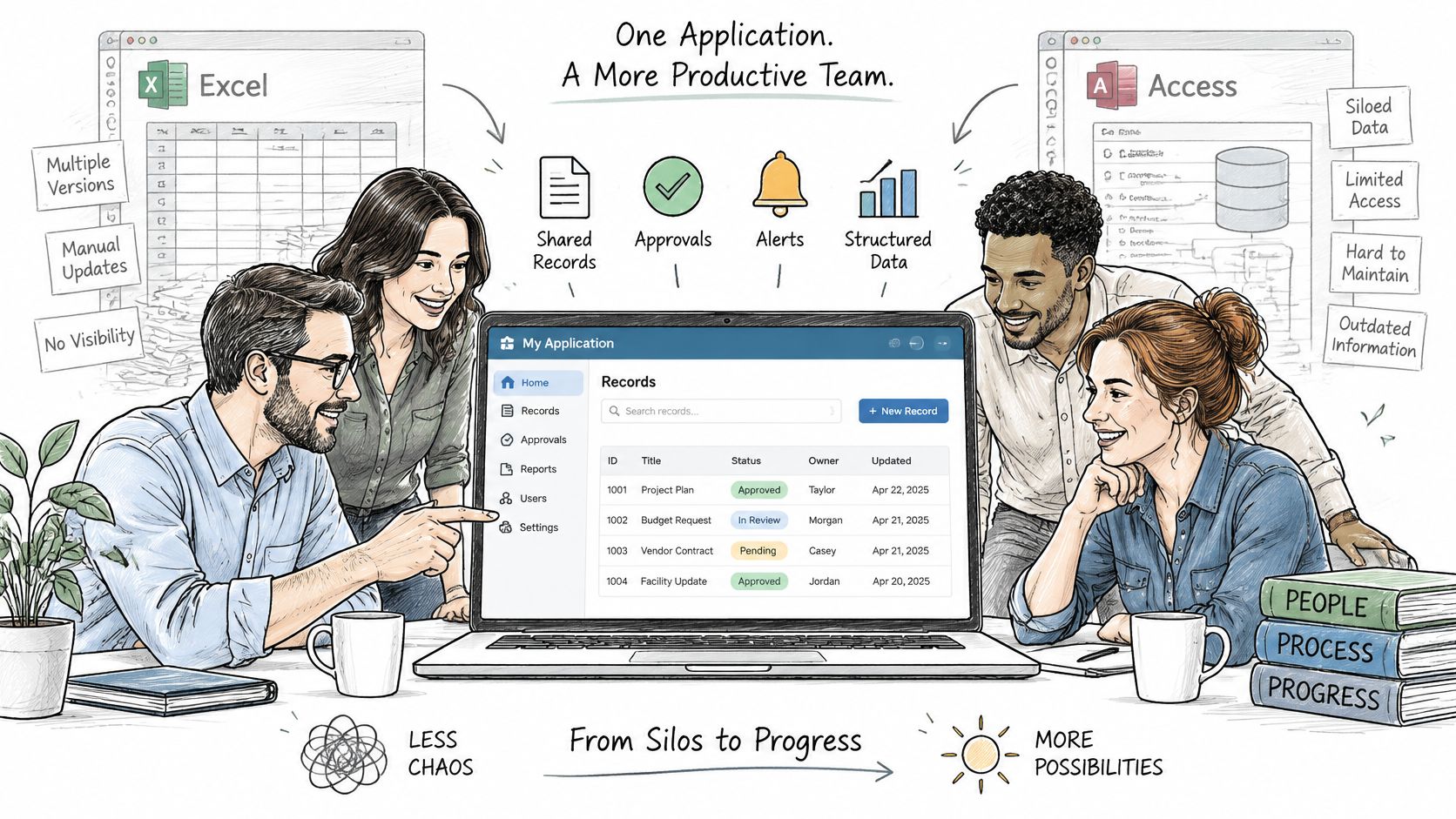
A managed service can also address an often overlooked question: who looks after the system after launch? Spreadsheet Upgrade converts business-critical Excel workbooks into purpose-built web applications and manages them as ongoing services, including hosting, backups, maintenance, security fixes, and support. The work begins with a structured assessment and proceeds to a scoped build and guided transition. Teams that want to operate and change an application in-house can also ask about an ownership option.
That approach isn't automatically preferable to Access. If the process is departmental, the database structure is suitable, and the desktop deployment works for its users, Access may be a reasonable fit. A managed application becomes more compelling when remote access, concurrent updates, controlled roles, or ongoing maintenance are the parts that desktop tools struggle to provide together.
Choose based on operational need, not the appeal of a new interface. A purpose-built system should reflect the actual workflow, and the team should understand how it will be supported as the process changes.
Your Next Step with a Free Fit Check
Before choosing a tool, write down how the process works today. Who enters the data? Who approves changes? Which reports matter? What happens when information is missing, duplicated, or incorrect? Those answers reveal whether the main problem is analysis, data structure, access control, or ownership.
A Free Fit Check maps the workbook, workflow, users, permissions, data, and edge cases so you can assess whether improving Excel, introducing Access, or building a purpose-specific application makes sense. To make the discussion concrete, prepare a copy of the workbook, a list of user roles, and a short note on the points that cause the most friction. You can start a Free Fit Check or explore the Excel-to-web-app process.
The aim isn't to abandon Excel. Keep it where flexible analysis helps, and put shared operational records on a foundation that fits the users, controls, and maintenance needs.
Spreadsheet Upgrade assesses business-critical spreadsheets and, where a managed custom application is a good fit, rebuilds the workflow and supports it as an ongoing service. Visit Spreadsheet Upgrade to discuss whether your operational data belongs in Excel, Access, or a managed web app.